AI 编辑器 Cursor 从基础功能到手写 MCP
Cursor 基本功能
0、基础
- Cmd + I 打开 AI 助手
- 可直接上传图片,Cursor 会自动识别图片内容
- 可开启多个聊天窗口,不同问题分开窗口,一个窗口太多或不同问题会影响 Cursor 思考
1、隐私模式
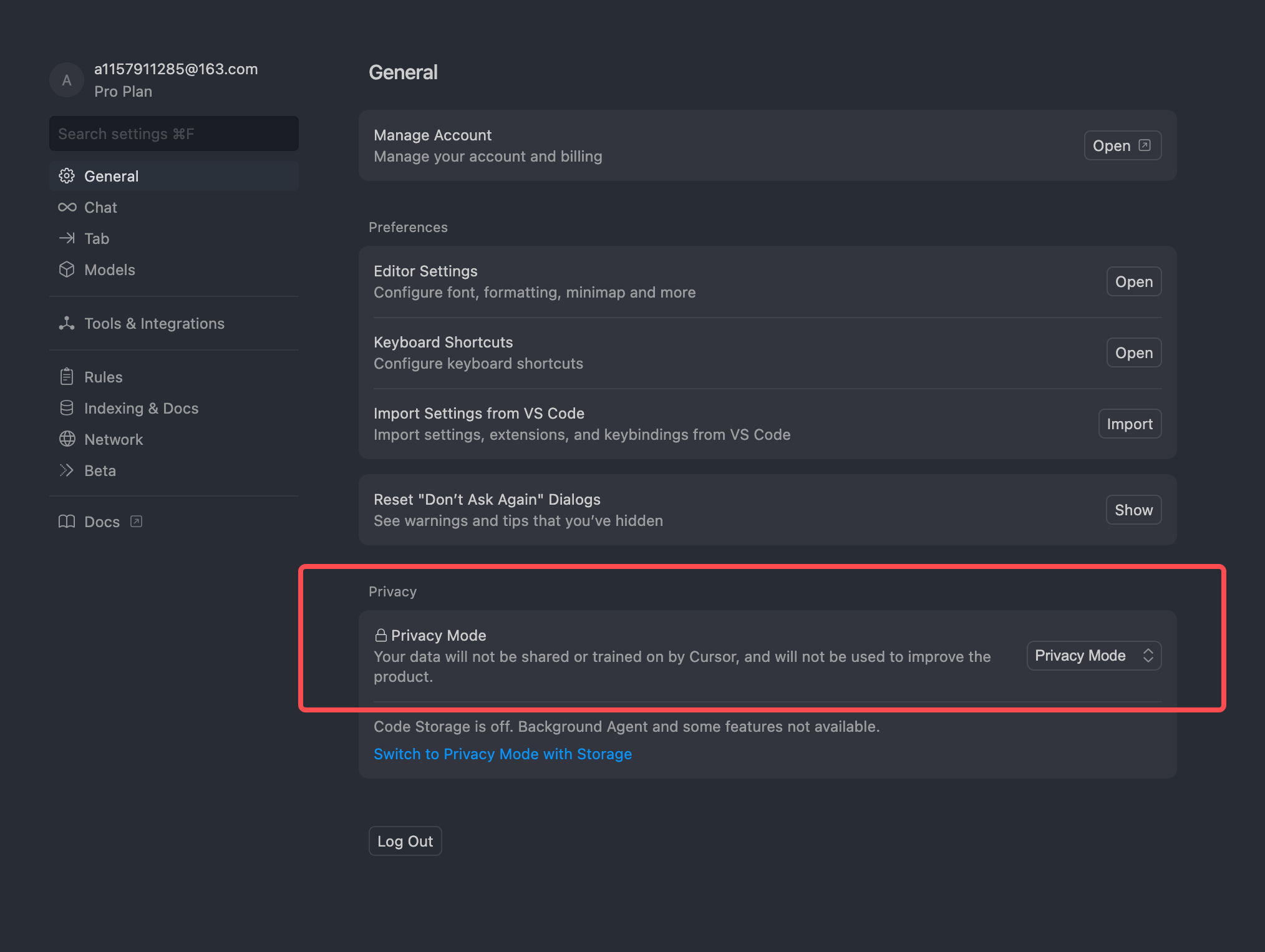
代码不会被上传到 Cursor 服务器,不会有安全问题
2、 选择模型
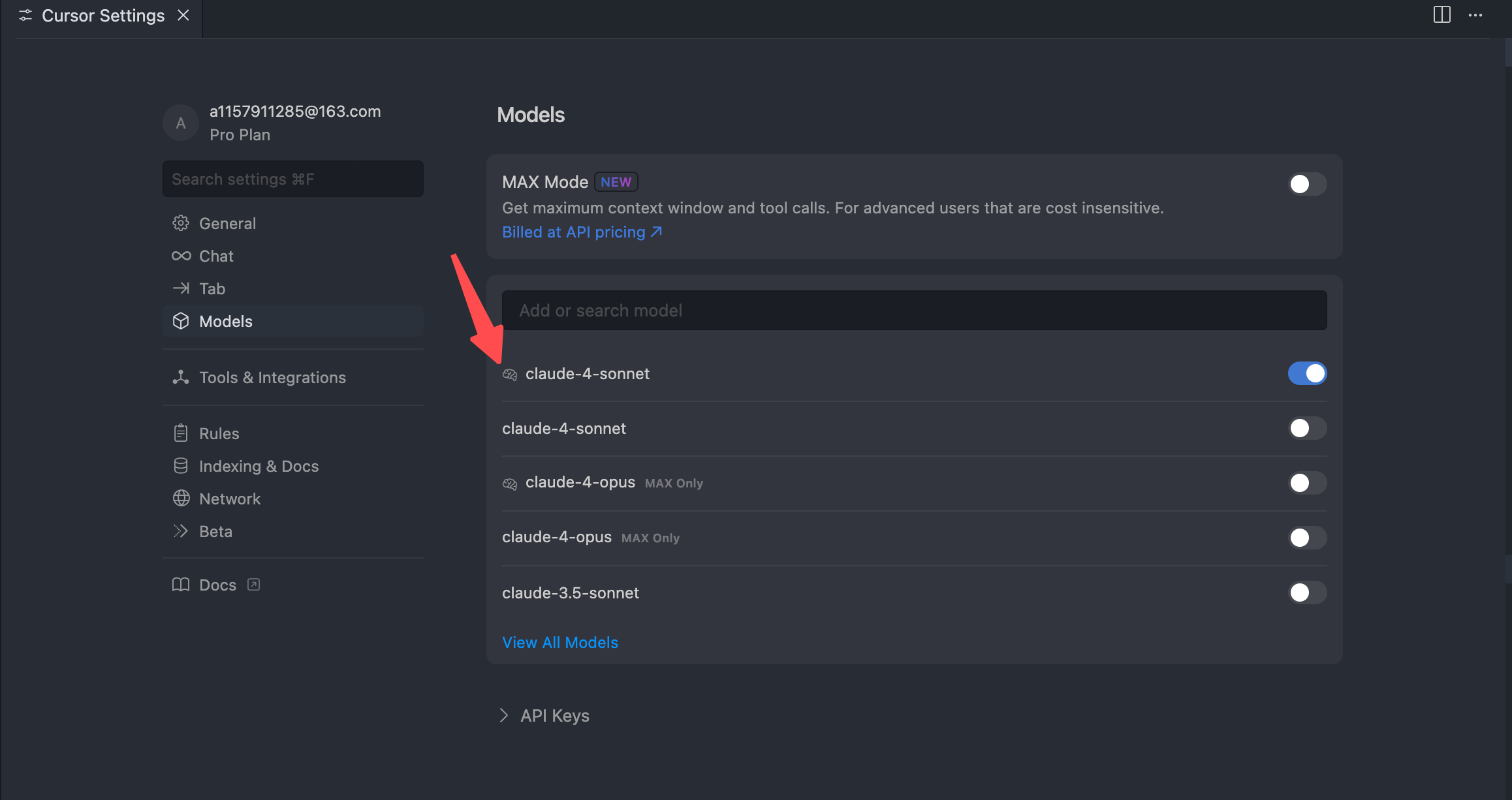
有这个小图标是带 thinking 的,我希望我的模型能不仅仅拘束于我的问题,希望 AI 有更广的思考,所以我使用的是 thinking 模型。
暂没发现怎么主动触发它自动思考补全
也就是以前的 composer,可以自主并理解全局上下文
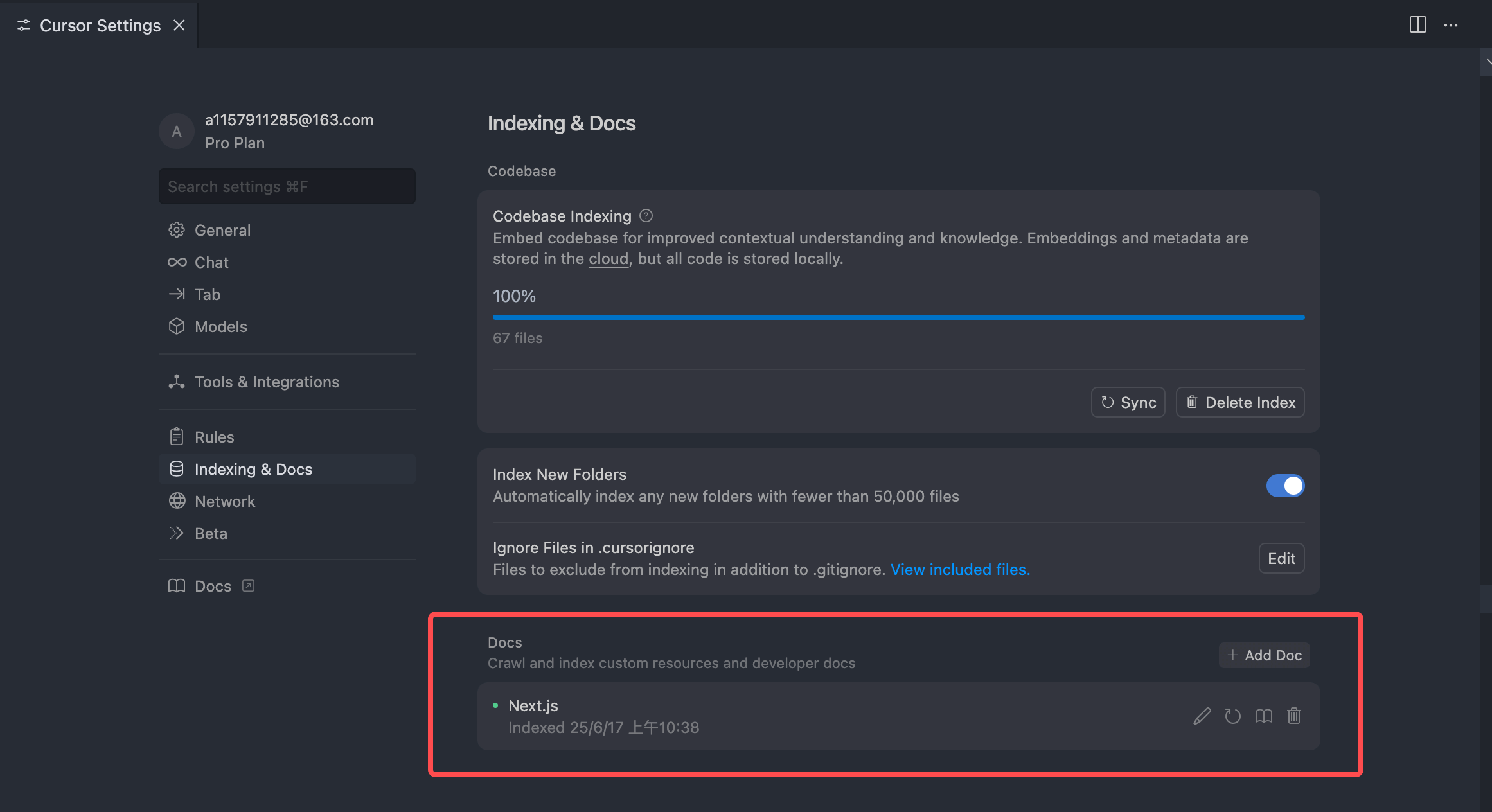
5、@Doc 使用最新文档
- working-with-documentation,前端更新迭代比较快,AI的数据可能没有那么新,Cursor 已经内置了主流框架文档,如 @Nextjs 的最新文档,另外如Framer motion 的最新文档这种没有被内置,就可以使用 @Doc 来获取最新文档
6、@Web 社区查询
联网查询,比如 @Web node最新版本、 @Web React19 的最新性能优化,查询到社区的最近讨论,更新或公告
MCP 模型上下文协议
需要注意 Figma 的 Token 默认一个月过期(其它 Token 同理),需要重新获取
需要注意要本地启动 browser-tools-server,因为依赖于本地浏览器,所以需要本地启动
npx @agentdeskai/browser-tools-server@latestnpx @agentdeskai/browser-tools-server@latest用于获取最新文档,直接从源代码中提取最新的、特定于版本的文档和代码示例,并将它们直接放入您的提示中,好像比 @Doc 的最新文档更有效
减少 Cursor 请求次数
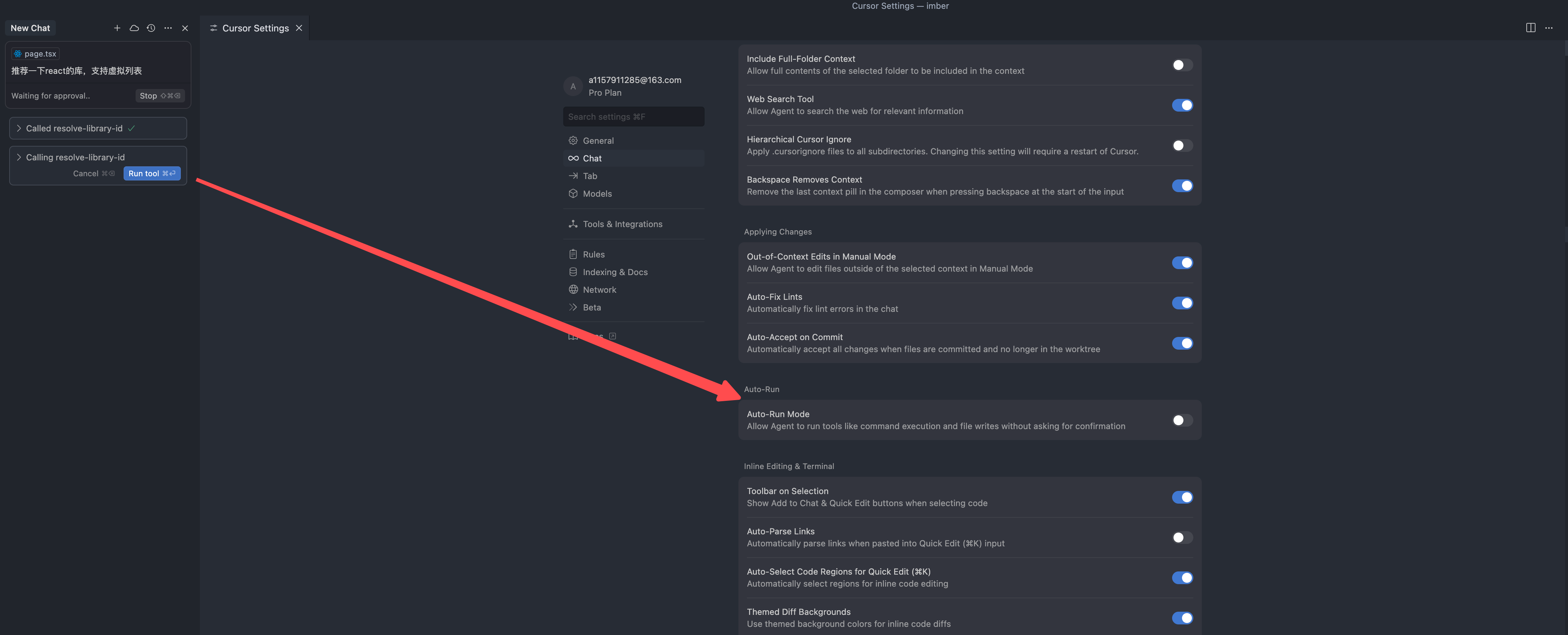
设置 Auto-Run Mode
每次问了 Cursor 后,如果涉及 MCP 还需要手动点Run tool,很不方便,然后发现 Cursor 可以设置自动执行
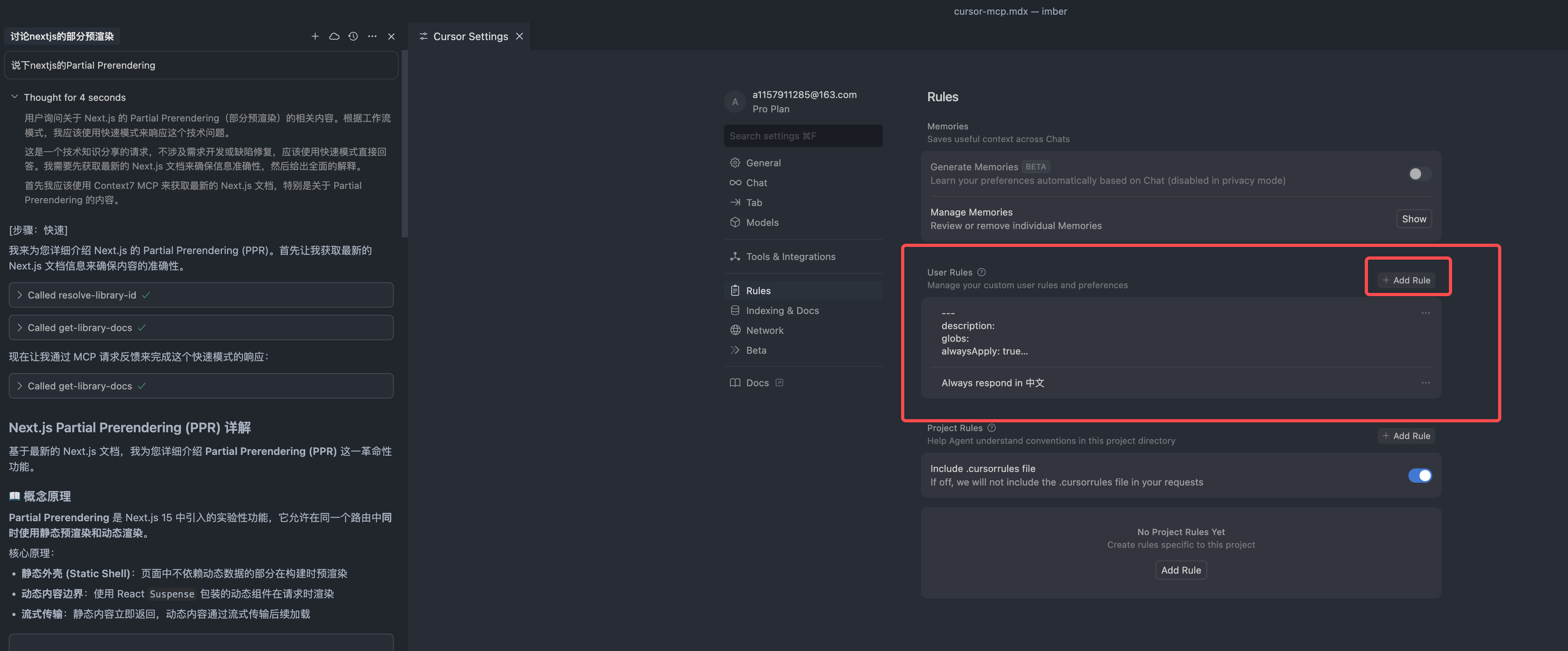
设置 Cursor Rules
让 cursor 按照自己的想法,遵循一定的规则来完成任务
Cursor 看源码经验
最近因为要实现瀑布流的虚拟列表,我就使用 Cursor 来看 react-window的源码,然后总结了几个比较靠谱的方案。
1、删除兼容性代码,抛出错误代码,未使用代码
2、删除不要的逻辑代码,比如direction和layout这类不跟虚拟列表强相关的
3、把英文注释改成中文注释
4、typescript最简化,全使用any,可能有些库用ts还可以,但我看的这个库没有必要
5、使用 Mermaid diagrams 绘制流程图
实现一个简单的 MCP
先来看一个 MCP 最简单实现
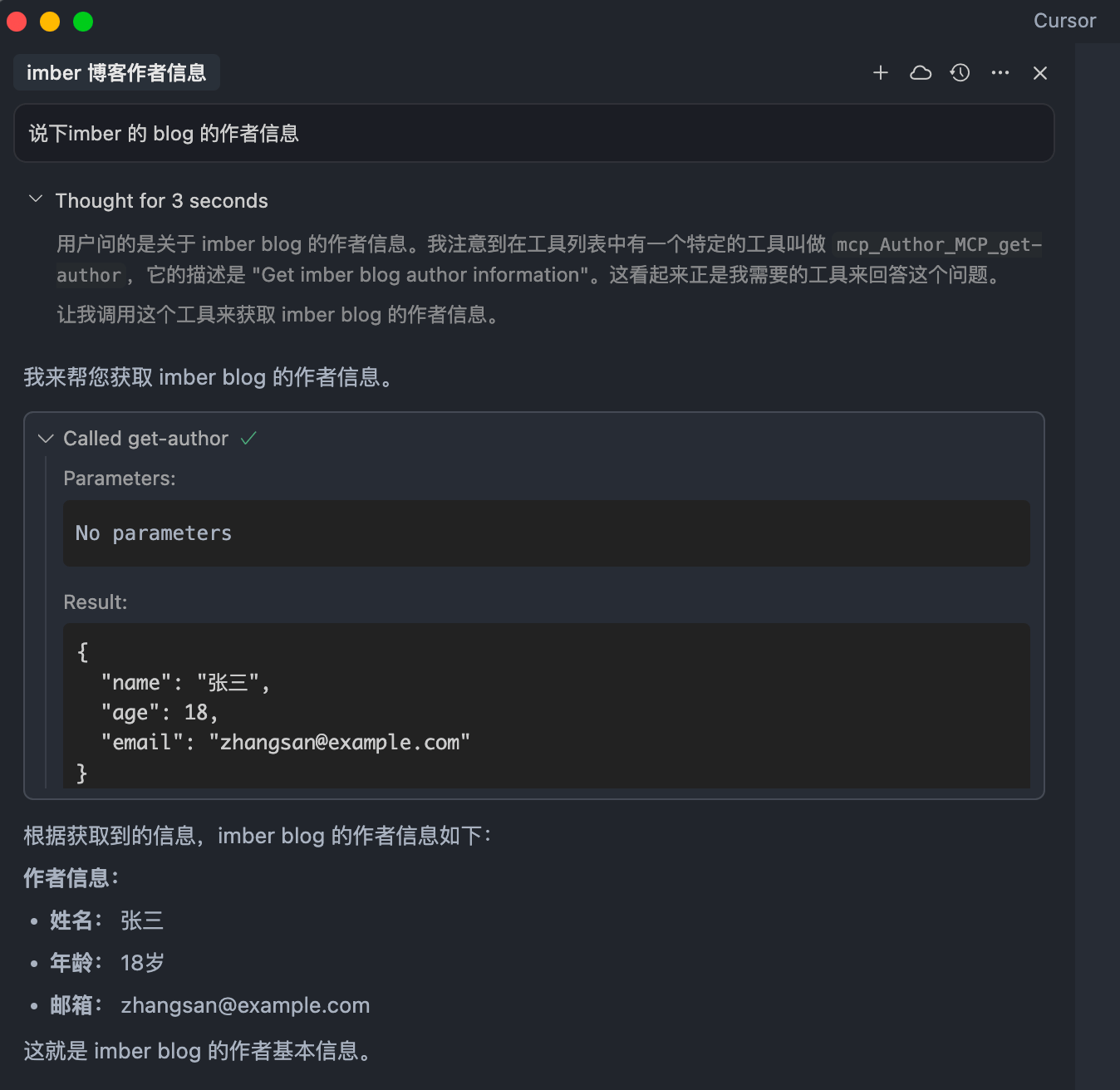
效果是在 Cursor 里询问 imber 的博客作者信息,Cursor 会自动调用 MCP 模型,然后返回结果
首先准备一个接口,返回作者信息,就用当前 Nextjs api 功能
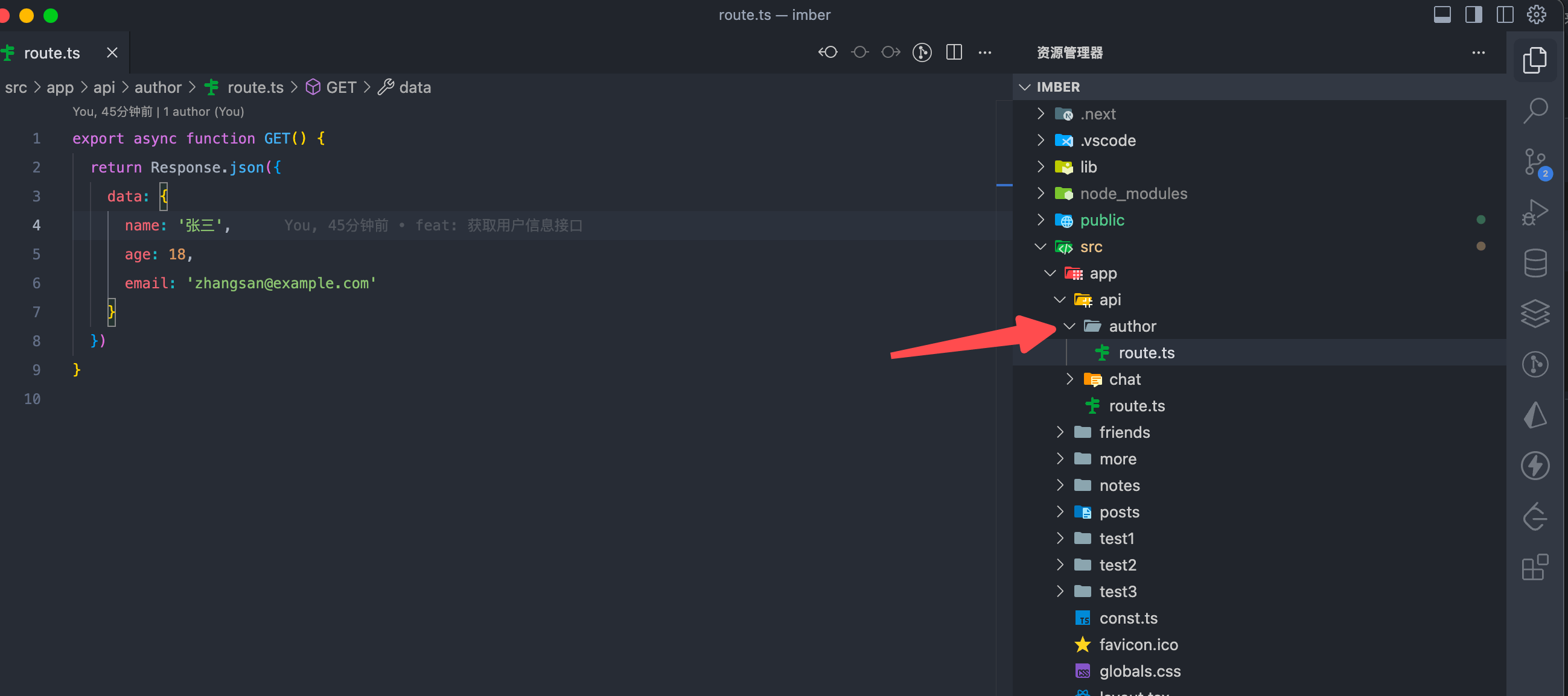
接口是 https://imber.netlify.app/api/author
然后实现下这个 MCP
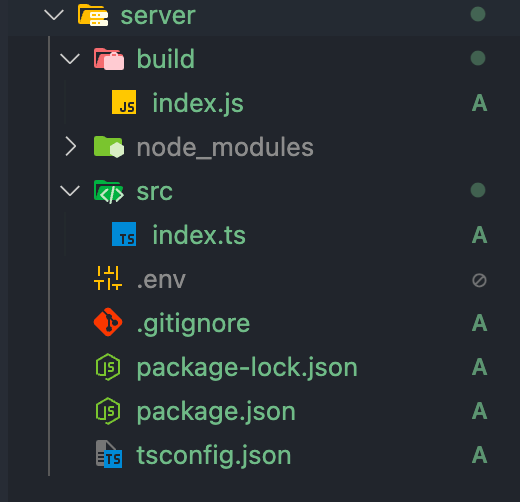
src/index.ts
import { McpServer } from '@modelcontextprotocol/sdk/server/mcp.js'
import { StdioServerTransport } from '@modelcontextprotocol/sdk/server/stdio.js'
const api = 'https://imber.netlify.app/api/author'

// 创建 server
const server = new McpServer({
  name: 'author',
  version: '1.0.0',
  capabilities: {
    resources: {},
    tools: {}
  }
})

// 创建工具
server.tool('get-author', 'Get imber blog author information', async () => {
  const response = await fetch(`${api}`, {
    headers: {
      'Content-Type': 'application/json'
    }
  })
  const data = await response.json()
  return {
    content: [
      {
        type: 'text',
        text: JSON.stringify(data.data, null, 2)
      }
    ]
  }
})

// 启动 server
async function main() {
  const transport = new StdioServerTransport()
  await server.connect(transport)
  console.error('Author MCP Server running on stdio')
}
main().catch((error) => {
  console.error('Fatal error in main():', error)
  process.exit(1)
})
import { McpServer } from '@modelcontextprotocol/sdk/server/mcp.js'
import { StdioServerTransport } from '@modelcontextprotocol/sdk/server/stdio.js'
const api = 'https://imber.netlify.app/api/author'
// 创建 server
const server = new McpServer({
name: 'author',
version: '1.0.0',
capabilities: {
resources: {},
tools: {}
}
})
// 创建工具
server.tool('get-author', 'Get imber blog author information', async () => {
const response = await fetch(`${api}`, {
headers: {
'Content-Type': 'application/json'
}
})
const data = await response.json()
return {
content: [
{
type: 'text',
text: JSON.stringify(data.data, null, 2)
}
]
}
})
// 启动 server
async function main() {
const transport = new StdioServerTransport()
await server.connect(transport)
console.error('Author MCP Server running on stdio')
}
main().catch((error) => {
console.error('Fatal error in main():', error)
process.exit(1)
})package.json
{
  "name": "server",
  "version": "1.0.0",
  "main": "index.js",
  "type": "module",
  "bin": {
    "weather": "./build/index.js"
  },
  "scripts": {
    "build": "tsc && chmod 755 build/index.js"
  },
  "files": ["build"],
  "keywords": [],
  "author": "",
  "license": "ISC",
  "description": "",
  "dependencies": {
    "@modelcontextprotocol/sdk": "^1.12.3",
    "zod": "^3.25.67"
  },
  "devDependencies": {
    "@types/node": "^24.0.3",
    "typescript": "^5.8.3"
  }
}
{
"name": "server",
"version": "1.0.0",
"main": "index.js",
"type": "module",
"bin": {
"weather": "./build/index.js"
},
"scripts": {
"build": "tsc && chmod 755 build/index.js"
},
"files": ["build"],
"keywords": [],
"author": "",
"license": "ISC",
"description": "",
"dependencies": {
"@modelcontextprotocol/sdk": "^1.12.3",
"zod": "^3.25.67"
},
"devDependencies": {
"@types/node": "^24.0.3",
"typescript": "^5.8.3"
}
}tsconfig.json
{
  "compilerOptions": {
    "target": "ES2022",
    "module": "Node16",
    "moduleResolution": "Node16",
    "outDir": "./build",
    "rootDir": "./src",
    "strict": true,
    "esModuleInterop": true,
    "skipLibCheck": true,
    "forceConsistentCasingInFileNames": true
  },
  "include": ["src/**/*"],
  "exclude": ["node_modules"]
}
{
"compilerOptions": {
"target": "ES2022",
"module": "Node16",
"moduleResolution": "Node16",
"outDir": "./build",
"rootDir": "./src",
"strict": true,
"esModuleInterop": true,
"skipLibCheck": true,
"forceConsistentCasingInFileNames": true
},
"include": ["src/**/*"],
"exclude": ["node_modules"]
}然后执行 npm run build 生成可执行文件,最后在 Cursor 配置这个文件
{
  "Author MCP": {
    "command": "node",
    "args": ["/Users/meizu/Desktop/mcp-test/server/build/index.js"]
  }
}
{
"Author MCP": {
"command": "node",
"args": ["/Users/meizu/Desktop/mcp-test/server/build/index.js"]
}
}最后看看实现的效果